Apple TV Remote Not Working? Here’s How to Fix It
If your Apple TV remote is not working, you’re not alone. Many Apple TV users face this issue at some point—whether the remote is unresponsive, laggy, or completely dead. The good news is, most of the time, it’s a small glitch that you can fix at home without needing a replacement. Let’s walk through the most common reasons why your Apple TV remote may stop working and the solutions to get it back on track.
1. Check the Basics First
Before diving into technical fixes, start with the simple things:
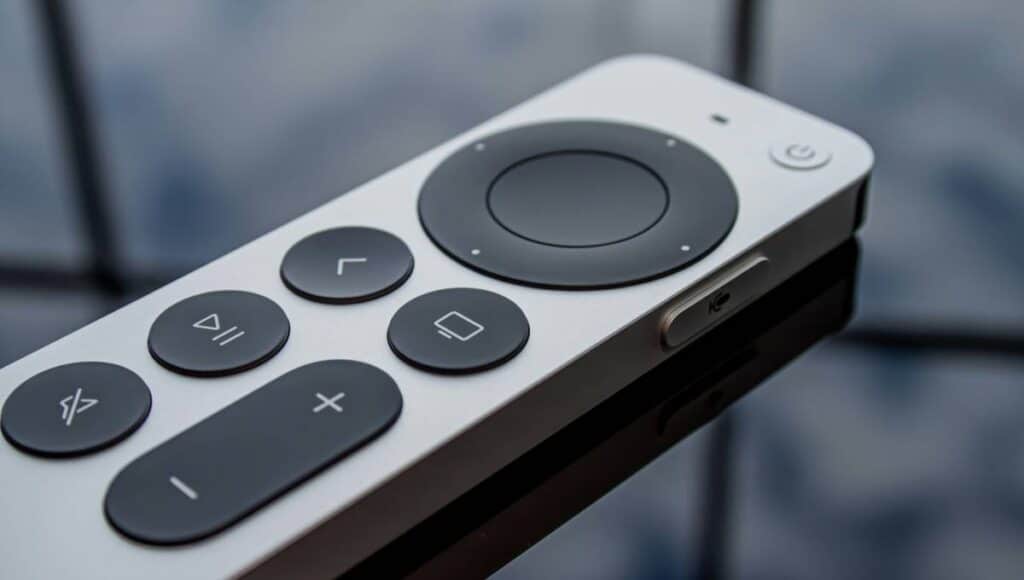
- Battery level: If you’re using the Siri Remote (2nd generation or later), it charges with a Lightning cable. Plug it in and let it charge for at least 30 minutes. If it’s the older Apple TV remote with a replaceable battery, you may need to swap it out.
- Range and obstacles: The remote uses Bluetooth, so if you’re too far away or if there’s interference (like walls or other devices), the signal may not reach the Apple TV.
Sometimes, just moving closer or giving the remote a quick charge solves the issue.
2. Restart Your Apple TV
A simple restart can clear temporary glitches. You can restart your Apple TV by:
- Unplugging it from the power source.
- Waiting at least 10 seconds.
- Plugging it back in and letting it boot up.
Once it restarts, check if the remote starts responding again.
3. Re-Pair Your Remote
If your Apple TV remote is still not working, it might have lost connection. You can re-pair it by:
- Holding the Back (or Menu) button and the Volume Up (+) button together for about 5 seconds.
- You should see a message on the TV screen confirming that the remote is paired.
This step usually fixes most unresponsive remote issues.
4. Update Apple TV Software
Sometimes, the problem is not with the remote but with the Apple TV itself. Outdated software can cause compatibility issues. To check for updates:
- Go to Settings > System > Software Updates.
- Select Update Software.
If an update is available, install it. After updating, test your remote again.
5. Use Your iPhone as a Remote
If nothing seems to work and you don’t have a backup remote, don’t worry. You can use your iPhone as an Apple TV remote:
- Open the Control Center on your iPhone.
- Look for the Apple TV Remote icon and tap it.
- Connect to your Apple TV and start controlling it directly from your phone.
This is super handy as a temporary fix until you get your remote working again.
Final Thoughts
When your Apple TV remote is not working, it can be frustrating, especially when all you want is to relax and watch your favorite show. But in most cases, the issue is minor—like low battery, lost pairing, or a temporary glitch. Try the steps above, and you’ll likely get your remote working in just a few minutes.
If nothing works, you might need to contact Apple Support or consider getting a replacement remote.
Interested in exploring more related posts about smartphones like the OnePlus 12, OnePlus 13R 5G, and many others?