How to Switch Off Poco M6 Pro: A Step-by-Step Guide
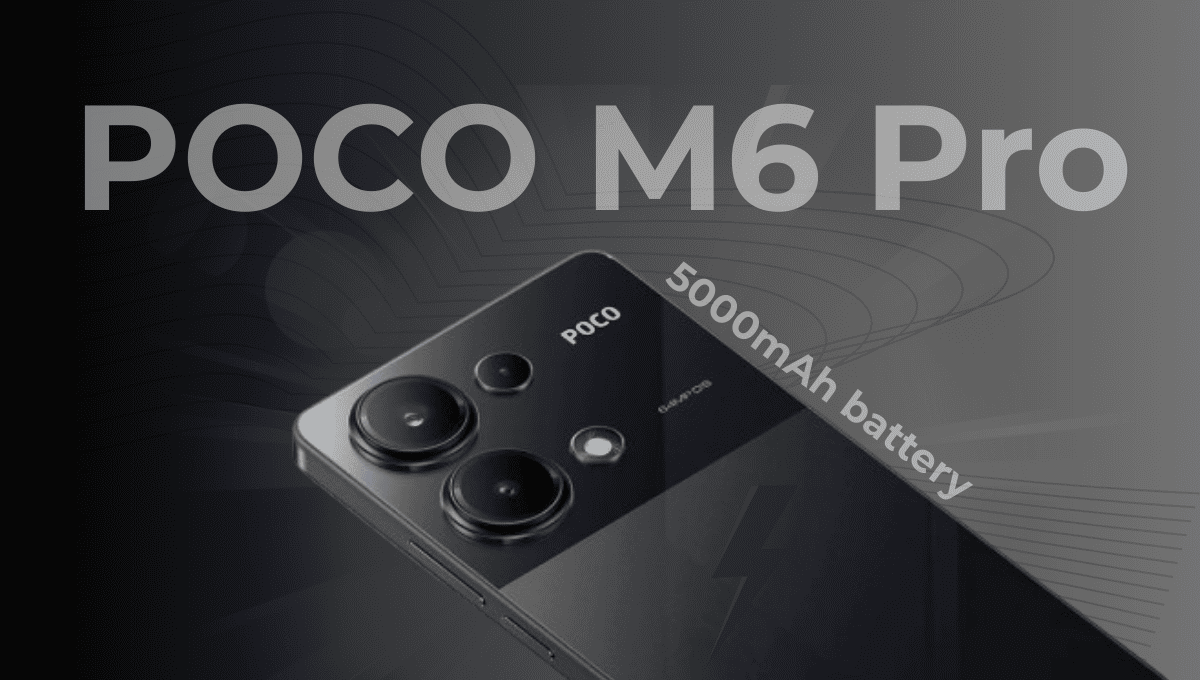
If you’re using the Poco M6 Pro, you might be wondering how to turn it off. Whether you’re doing it for the first time or just need a refresher, powering off your phone is a straightforward process. In this blog, I’ll explain the easiest ways to switch off your Poco M6 Pro so you can handle it with confidence.
Why You Should Know How to Power Off Your Phone
Switching off your phone is more than just saving battery. It helps refresh the system, fix minor glitches, and even extend your device’s lifespan. If your phone freezes, drains battery quickly, or slows down, a simple restart or power off can make a big difference.
How to Switch Off Poco M6 Pro – The Easy Way
Let’s go through the process step by step.
1. Find the Power Button
The power button is located on the right side of your Poco M6 Pro. Press and hold this button for a couple of seconds.
2. Choose the Power Off Option
Once you hold it, a menu will pop up with different options like Power Off, Restart, and Emergency Mode. Tap on Power Off.
3. Confirm to Turn Off
A confirmation screen will appear asking if you really want to turn off the phone. Tap OK or Confirm, and your device will shut down completely.
Another Way to Turn It Off – Using Quick Settings
If you prefer not to use the button, you can also switch off your phone through the touchscreen:
- Swipe down from the top of your screen to open the Quick Settings panel.
- Look for the Power icon and tap it.
- Select Power Off, then confirm.
This method is useful if the buttons are not responding or you just want a faster way to power off.
When Should You Turn Off Poco M6 Pro?
Here are a few situations where turning off your phone is helpful:
- When your phone is lagging or freezing
- During software updates or app installations
- To conserve battery during long trips
- If the device feels unusually warm
- As a simple troubleshooting step
Final Words
Switching off the Poco M6 Pro is easy once you know how. Whether you use the side button or the quick settings, it only takes a few seconds to power down. Doing this occasionally can keep your phone running smoothly and help avoid performance issues.
Now you know exactly how to switch off your Poco M6 Pro anytime you need!